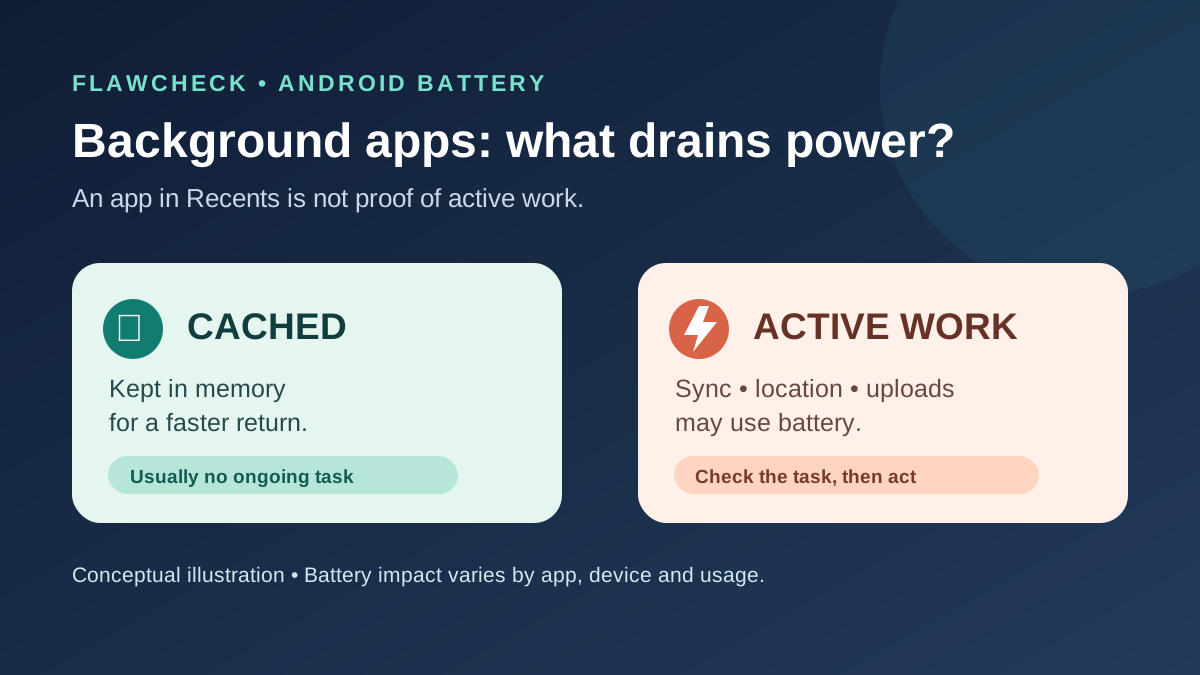
An app card left in Android’s Recents screen is not proof that the app is steadily draining your battery. Android may retain a process in memory so you can return to it quickly, while limiting what that process can do. But an app can also perform useful or unwanted work when its screen is out of view: navigation, audio playback, uploads, synchronization, and location updates all have different power costs.
The downside of treating every open-looking app as a battery problem is that you may repeatedly close apps you use, only to make them restart later. The opposite mistake is dismissing a genuinely misbehaving app because “Android handles everything.” Check what consumed power during the period that concerns you, then change one setting for the app that warrants investigation.
Decision in 30 seconds: A card in Recents is not evidence of idle battery drain. Check the app or system usage during the relevant time, then change one suspect setting and verify notifications still work.
The answer in 30 seconds
- Cached is not the same as actively working. Android can keep an app’s process in memory after you leave it and remove that process when memory is needed. A cached process should stop work in that state; on Android 13 and later it may receive limited or no execution time until active again. Android Developers: processes and app lifecycle; memory overview.
- Background work can use battery. Location updates, network transfers, and other scheduled work require resources; the cost depends on what the app actually does and how often. Android Developers: background tasks; background location and battery.
- Do not close everything as a nightly ritual. If you return to those apps, full restarts can cost more resources than resuming cached processes. Android’s warning about unnecessary process killing supports this mechanism, but does not establish a universal battery saving percentage. Android Developers: Android 14 behavior changes.
- Investigate a specific suspect. Review battery usage for the time in question, consider how long you actually used the app, and restrict its background activity only when the benefit outweighs delayed notifications or interrupted work. Google Pixel Help: fix battery drain; Pixel battery optimization.
Four different things people call a “background app”
A card in Recents is a way to return to a task. It is not a live CPU meter. The card alone cannot tell you whether that app has a process in RAM or is currently using location or network services.
A cached process is a process Android keeps after its visible activity stops. It can be discarded to make room for other apps. Android tells developers to cease work in the cached state and use appropriate APIs for work users still need after leaving the app. Holding some RAM is therefore a different question from continually consuming processor time. Android Developers: processes and app lifecycle.
An active task while the screen is elsewhere may be a download, music playback, navigation, sync job, or other user-relevant work. Some of this activity is expected. Excessive or unnecessary activity can cost battery. Android applies restrictions that depend on device and app state; you cannot infer the cost just from the app icon remaining visible in Recents. Android Developers: background tasks; background optimization.
An app listed in Battery usage used an estimated share of power over the selected interval. That entry does not by itself say when the energy was used or prove that it occurred while the phone was idle. Your long video call or hours of navigation may explain a high entry better than a fault. On Pixel, Google provides a View by apps view and a per-app route to review background usage; other manufacturers may label their screens differently. Google Pixel Help: fix battery drain.
There is one more confusing use of “cache”: the temporary files under an app’s Storage & cache settings are stored data, not the same thing as a cached process in RAM. Clearing those files is not a general fix for overnight battery drain. Android: clear cache and cookies; Android Developers: memory overview.
App state → possible activity → battery risk → your move
| What you see | What the app may be doing | Battery concern | What to do |
|---|---|---|---|
| Card in Recents | May be cached, active, or already removed from RAM. | Unknown from the card alone. | Leave it alone; check Battery usage if drain is unusual. |
| Cached process | Retains state in RAM; should stop work while cached. | Usually low from this state alone; no universal zero-power promise. | Let Android manage memory. |
| Expected active task | Playing audio, navigating, uploading, or syncing something you requested. | Potentially meaningful, depending on duration and task. | Keep it if needed; stop the task when finished. |
| Unexplained activity | May repeatedly use location, network, or other resources. | Worth investigating, especially during idle time. | Inspect the app, permissions, updates, and usage; change one setting. |
| Restricted or sleeping app | Has less opportunity to run while you are away. | May reduce unwanted activity, but varies by device. | Check for delayed alerts, failed sync, and interrupted tasks. |
This is a diagnostic guide, not a measurement of battery percentage. Recents is not a process monitor; manufacturer battery controls vary. Android Developers: process lifecycle; background tasks; Google Pixel Help; Samsung battery optimization.
What can actually drain battery while you are not using the screen?
Look for a task, not a count of app cards. Repeated network transfers, frequent location requests, and work that wakes the device can all consume power. Android’s developer guidance specifically warns that background location can significantly affect battery life. An app with location permission is not automatically at fault: a navigation trip and an unexpectedly active shopping app deserve different interpretations. Android Developers: background location and battery; background tasks.
Some work is worth the cost. A podcast playing with the screen off, a map guiding you, or a file upload you requested is behaving differently from an app repeatedly syncing information you do not need immediately. Battery optimization is a trade-off between energy, timeliness, and reliability. Google’s Battery Saver guidance warns that limiting background activity can delay certain app features and network behavior. Android Help: get the most life from your device’s battery.
Battery life also changes with your screen use, network conditions, charging and update activity, and battery condition. A percentage next to one app is a clue, not a diagnosis. If your concern is long-term battery aging rather than unexpectedly short runtime, the 80% charging trade-off guide addresses that different decision. Do not attribute an entire day’s drop to background work because an app appears near the top of the list.
Why idle does not mean every task stops forever
Android’s Doze and App Standby limit when apps can run jobs, sync, use the network, or set certain alarms while a device or app is idle. Some work is deferred and can run later, including during maintenance opportunities. A late burst of sync does not mean an app spent every minute of the preceding idle period working. Conversely, an exception or a task the user needs may still receive access under the platform’s rules. These mechanisms help explain why an overnight battery graph is more useful than assuming every installed app runs continuously. Android Developers: optimize for Doze and App Standby; power management resource limits.
If a notification arrives late after you restrict an app, the delay can be the cost of that restriction rather than evidence that the app is broken. Test an important messaging, alarm, or navigation workflow before accepting a battery-saving change. Android Developers: optimize for Doze and App Standby; Android Help: battery-saving trade-offs.
Should you swipe away all your apps to save battery?
Usually, there is no good reason to clear every Recents card simply because you can see it. Android is designed to retain and reclaim processes as needed. Its Android 14 developer documentation says unnecessary killing can increase battery use by forcing a full restart rather than resuming an existing cached app. That guidance concerns the cost of unnecessary process termination; it does not mean every swipe on every phone causes measurable harm. Android Developers: Android 14 behavior changes; memory overview.
An exception: if one app has frozen, is stuck uploading, keeps using location after you finish a task, or shows unexplained consumption, closing or force-stopping that app may be a useful troubleshooting step. Then check whether the symptom returns and review its permissions, update status, or background setting. A force stop is a response to a specific problem, not a substitute for identifying the cause.
Do not install a cleaner to repeatedly kill apps for you. Our RAM cleaner guide examines that separate decision. If the real problem is lost app state when switching back, start with the app reloading guide instead.
Similarly, Virtual RAM and RAM Plus concern app retention under memory pressure. They do not identify which background task is using battery. Diagnose the power use first rather than changing a memory setting on the strength of a Recents card.
Check the time window first: An app that used power while you were watching a video is not proof of a problem during the night.
How to investigate unusual battery drain
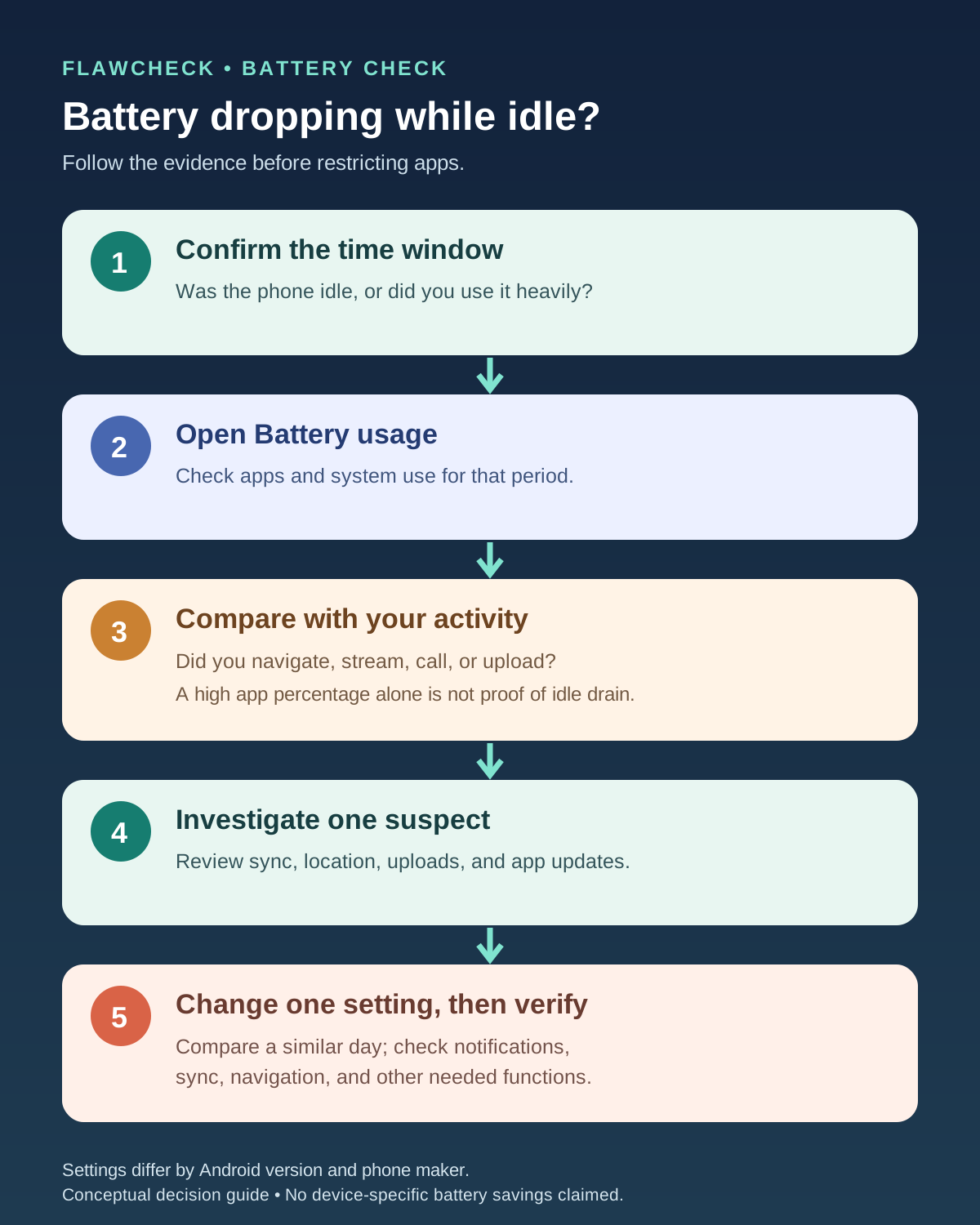
1. Choose the right time window. Note whether the drain happened during active use or while the phone was idle. On Pixel, open Settings → Battery → Battery usage and choose View by apps. Google changes some menu steps across Pixel and Android versions; use Settings search if the labels differ. On a Galaxy phone, open Battery settings and inspect battery usage by app. Google Pixel Help: fix battery drain; Samsung: battery optimization.
2. Compare the entry with what you did. A high-use app you spent an hour watching is not evidence of idle drain. A rarely used app repeatedly showing substantial activity during idle periods deserves a closer look. Battery usage screens are useful for prioritizing investigation; do not treat their percentages as a direct measure of cached RAM or a controlled app benchmark.
3. Check what the app needs to do. Did you request a download or backup? Does it play audio, navigate, track a workout, or need prompt messages? Check its location permission, its own sync options, and whether an update or temporary fault explains the change. Background location is a documented battery consideration. Android Developers: background location and battery.
4. Change one thing and observe. Update the app, adjust an unnecessary permission or sync frequency, or try a stricter battery setting for that app. Compare a similar period of use afterward, allowing for normal daily variation. If you need instant messages or ongoing navigation, confirm those still work. Do not promise a fixed number of hours saved without a controlled test.
A practical comparison: Record the charge level before bed and after waking, along with whether the phone was charging, the approximate idle interval, signal quality, and whether Battery Saver was on. After changing one app setting, compare another night with roughly similar conditions. A single night cannot isolate every variable, and the battery percentage is a rounded device estimate. What you want is a repeatable change and a working app, not one unusually good night. If the change makes no clear difference, restore the setting rather than restricting more apps at random.
5. Widen the investigation if no app stands out. Look at system, screen, and mobile-network usage as well as battery health and recent updates. Google’s Pixel troubleshooting distinguishes app use from system components; a large app entry is not the only possible cause. Google Pixel Help: fix issues with your Pixel phone battery.
If the phone also becomes unusually hot during light use, follow the thermal throttling and heat diagnostic guide for that separate symptom; heat alone does not identify an app or prove it caused the battery drain.
When the app list points in the wrong direction
If several apps look ordinary but the phone still loses charge unusually quickly, switch from the app view to any available system view. On Pixel, Google separately lists components such as Screen, Wi-Fi, Mobile network, Android OS, and CPU. A weak mobile connection, a frequently waking screen, or a recent change in device behavior calls for a broader check than restricting a messenger because it happens to appear in the app list. Manufacturer estimates and menu labels differ, so compare the same phone under comparable use rather than treating one percentage as a cross-device benchmark. Google Pixel Help: fix issues with your Pixel phone battery.
Optimized, Restricted, or Unrestricted: which should you use?
Optimized is the sensible starting point on Pixel. Google recommends keeping Adaptive Battery and battery optimization on. If an app behaves normally and its battery use matches your use, leave it alone. Google Pixel Help: keep Adaptive Battery and battery optimization on.
Restricted is a targeted experiment for an app with unwanted background activity. It can reduce opportunities for work while you are not using the app, but notifications, syncing, uploads, and other time-sensitive features may be delayed or interrupted. Confirm the trade-off on the actual app before leaving it restricted. The setting names and effects vary with Android version and phone maker. Android Help: Battery Saver trade-offs; Google Pixel Help: fix battery drain.
Unrestricted is for a specific job you need to run reliably, after checking the app’s guidance and testing the normal setting. It grants more opportunity for background work and can increase consumption. Do not enable it across the phone in the hope that it improves speed. Android Developers: background optimization.
Samsung Galaxy adds Sleeping, Deep sleeping, and Never sleeping apps. These lists are not interchangeable labels for Pixel’s three choices. Samsung says sleep settings limit background activity, while adding apps to Never sleeping can cause additional background battery use. Put rarely used apps to sleep selectively; check messaging, alarms, wearables, navigation, and other functions you rely on after a change. Samsung also notes location-related features may fail when the relevant app sleeps. Samsung: battery optimization; Samsung: GPS troubleshooting.
If apps start reopening from scratch or alerts arrive late after an aggressive setting change, reverse that change before buying a phone with more RAM. The app-reloading guide linked above separates memory pressure from battery restrictions; the 6GB vs 8GB vs 12GB RAM guide addresses the hardware buying decision.
Avoid the blanket fix: Restricting every app can delay useful messages and sync without identifying what drained the battery.
Bottom line
If your battery life is normal, a crowded Recents screen requires no cleanup. If battery life suddenly worsens, use Battery usage and your own activity to identify a plausible cause. Leave ordinary apps optimized; change a specific app’s permission or background setting only when the expected battery benefit is worth the risk of late notifications, failed sync, or interrupted tasks. Cached is a memory state. Battery drain is an activity question.
Editorial note: Menu paths and battery estimates vary by device, Android version, and manufacturer. Examples are labeled Pixel or Galaxy where applicable. No app-specific battery saving or cross-device test result is claimed.