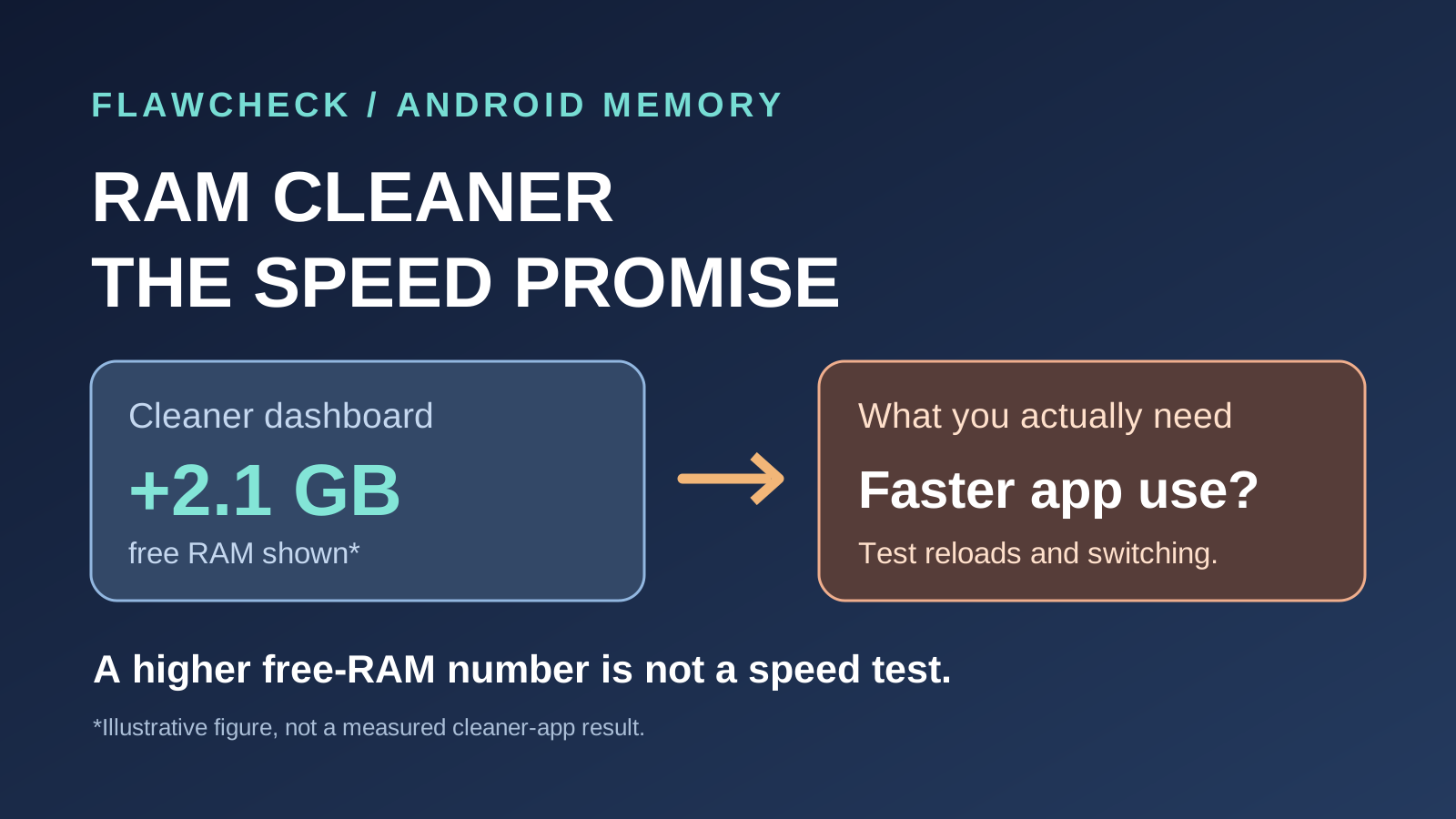
Decision in 30 seconds: Routine RAM cleaning is unlikely to deliver a lasting speed gain. Check how your usual apps behave after cleaning; close an unresponsive app individually.
The downside: A RAM cleaner can make the “free RAM” number look better while making apps you use regularly start from scratch. For most Android phones, routinely clearing memory is unlikely to provide a lasting speed boost. Android already manages cached apps and reclaims memory when it needs to. If one app has frozen, closing or force-stopping that app can help; that is different from repeatedly clearing every app. Source 1Source 2Source 3
That distinction matters if your phone feels slow. A larger free-memory figure is easy to see. Faster app launches, fewer unwanted reloads and steadier performance over time are the outcomes you actually care about. We have not benchmarked a specific cleaner app or phone for this article, so this guide explains what Android’s documentation supports and where your own results would need testing.
What does a RAM cleaner actually change?
“Cleaner” is an umbrella label. An app may show a memory dashboard, prompt you to close recent apps, attempt to stop background processes, manage files, or combine several tools. Those actions do different jobs. You cannot judge a particular cleaner by its name or a single before-and-after RAM figure.
Android keeps some processes cached because you may return to them. When memory is needed, the system can reclaim pages, compress some data in zRAM, and end lower-priority processes. It does not require every byte of RAM to sit unused. Source 1Source 2 If a tool removes a cached process, the free figure can rise at that moment. When you open the app again, it may need a full restart instead of resuming its cached state. Android’s own developer guidance warns that unnecessary process killing can reduce performance and increase battery use because of those restarts. Source 3
A limit worth knowing: Starting with Android 14, a regular app’s killBackgroundProcesses() call can kill only its own background processes. This does not prove what every utility does internally; it does mean a third-party app should not be credited with system-wide process control merely because its screen says “boost complete.” Source 3
What the cleaner promises versus what you can check
| Cleaner promise | What its screen can actually show | What you should do |
|---|---|---|
| “Free more RAM” | A before-and-after memory figure at one moment—not a sustained speed result. | Reopen your usual apps and check whether switching still feels smooth. Source 1Source 3 |
| “Make apps launch faster” | A completion animation or list of closed processes, not an app-launch test. | Compare the same apps over repeated runs; watch for cold starts after cleaning. Source 3 |
| “Stop background apps” | A request to close apps; third-party process controls have Android version limits. | Close a specific frozen app; avoid treating a bulk-close counter as proof of improvement. Source 3Source 4 |
| “Clean junk and boost RAM” | Freed file-storage space and a RAM number are separate measurements. | Review files before deleting them; assess storage cleanup independently of speed claims. Source 4 |
Reading the table: These are examples of marketing promises, not findings from a test of a named cleaner. A tool could offer useful storage management without making its RAM-speed claim true.
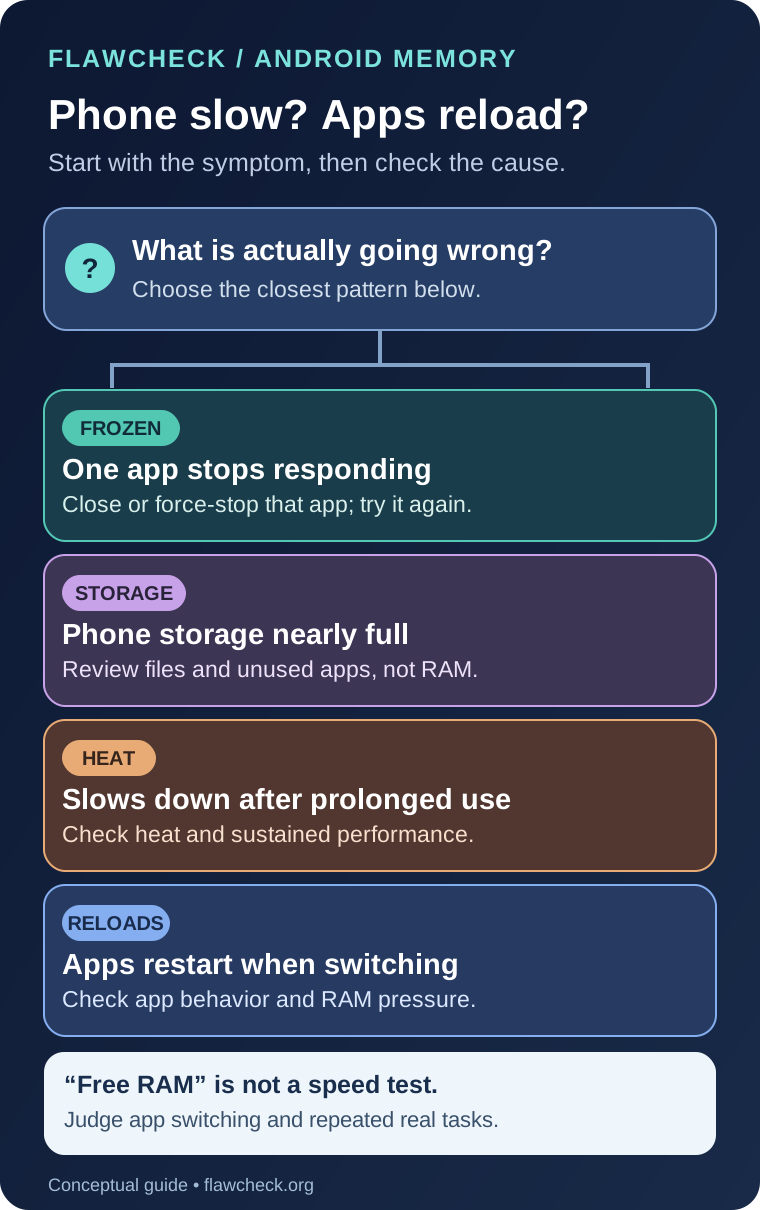
Figure: A symptom-based check. Different phone models may name their settings differently; the diagram does not diagnose a particular device.
Why “more free RAM” is a poor speed test
A cleaner’s dashboard may compare available RAM immediately before and after you press a button. That measures a memory state at two moments, not whether your daily tasks improved. Android keeps useful data available for reuse, then responds to memory pressure itself. In that context, high RAM use alone is not a diagnosis. Source 1Source 2
Look instead at what happens after the button press:
- Does an app you regularly use reopen where you left it, or show its splash screen again?
- Is switching among your usual apps smoother after several minutes, or only for a moment?
- Does the same game or app still slow down during a long session?
These are questions for a controlled check, not a claim that every cleaner has identical effects. Compare the same app sequence under similar conditions on your own phone; one “RAM freed” notification is not evidence of a sustained performance gain.
Could cleaning RAM make app switching worse?
Yes, if it removes apps that Android could otherwise have resumed quickly. Google’s Android 14 guidance explicitly links unnecessary killing to full app restarts and possible performance and battery costs. Source 3 How noticeable this is depends on the phone, app and what you do next. Avoid promising a fixed amount of slowdown or battery drain without a device-specific test. For a battery-focused check, see cached apps versus active background work: an app retained in memory is not the same as one performing a task while the phone is idle.
There is a related trap: If your apps already keep reloading, aggressive closing can reproduce the symptom you wanted to fix. For the broader diagnostic path—memory pressure, app settings and other causes—see Android app reload troubleshooting guide.
When is closing an app useful?
If a particular app stops responding, close it and try again; force-stop it if needed. Google specifically recommends that exception, while saying you do not usually need to close apps. Source 4 If the same app repeatedly misbehaves, update or troubleshoot that app rather than clearing every background app each time. If you suspect an app is consuming too much memory, consider whether you still need it. Source 4
A phone with too little physical RAM for your normal workload is a different problem. Clearing memory cannot add physical RAM, and it cannot guarantee that a demanding set of apps will remain open. The 6GB, 8GB and 12GB Android RAM buying guide covers the buying decision; this article covers the cleaner-app decision.
RAM cleaning, storage cleaning and Virtual RAM are different
| Term | What it concerns | What a successful result would show |
|---|---|---|
| RAM cleaning | Memory used by running and cached processes | Better behavior in the tasks you repeat—not simply a higher free-RAM number. |
| Clearing an app’s cache / storage cleanup | Temporary files and other data kept on the device | More storage space or a specific app issue resolved. Clearing cache may make that app slower the next time it opens. Source 4 |
| Virtual RAM / RAM expansion | A device’s memory-management feature, whose implementation varies | A measured benefit for a particular workload; it is not a substitute for physical RAM. See the Virtual RAM and RAM Plus guide. |
Google distinguishes storage, where data such as media is kept, from memory, where programs run. It also distinguishes Clear cache, which deletes temporary data, from Clear storage, which permanently deletes an app’s data. Do not tap “Clear storage” thinking it is a harmless RAM-cleaning step. Source 4
A cleaner bundle may include file cleanup that genuinely frees storage. Judge that feature separately from its RAM-boost claim. If storage is nearly full, follow the phone’s storage tools and review what will be deleted. Source 4
What should you do if your Android phone feels slow?
- Identify the symptom. Is one app frozen, do several apps reload when you switch, or does the whole phone slow down after prolonged use? Those point to different checks.
- For one frozen app, close or force-stop that app. Then see whether the fault returns. Source 4
- If apps reload, observe which apps and when. Use the separate app-reloading guide to check memory pressure and app-specific behavior. Do not use “RAM used” as the only test.
- If the phone slows during gaming or sustained work, consider heat. See the phone thermal throttling guide for performance drops during long sessions.
- If storage is nearly full, check storage directly. Remove unwanted files or unused apps using the phone’s storage tools; our free storage headroom guide covers that separate diagnosis. Do not confuse freed storage with freed RAM. Source 4
Bottom line
Verdict: Skip routine one-tap RAM cleaning as a speed habit. Deal with a frozen app individually, and diagnose persistent slowness by its actual symptom. If a utility promises a dramatic boost, ask for repeatable app-launch or switching results on your own phone—not just a bigger “free RAM” number. Source 1Source 3Source 4
Frequently asked questions
Is high RAM usage bad on Android?
Not by itself. Android uses memory to keep useful processes ready and reclaims resources under pressure. Repeated app reloads or failures during your normal workload are more meaningful signs to investigate than a high used-RAM percentage alone. Source 1Source 2
Should I close all background apps every day?
Usually no. Google says Android manages memory automatically even if you do not close apps. Close a specific app if it stops responding. Source 2Source 4
Is a cleaner’s “RAM freed” number fake?
The displayed number may reflect a real short-term change, but it is not proof of a faster phone. Evaluate what happens when you reopen your regular apps and repeat your normal tasks. Source 1Source 3
Is clearing app cache the same as clearing RAM?
No. Cache clearing deletes temporary app data from storage; RAM cleaning concerns memory used by processes. Google cautions that an app may open more slowly after its cache is cleared. Source 4